

Resetting a Windows 11 PC improves performance, fixes bugs, enhances security, and restores system stability. Whether your system is running slow, facing errors, or simply cluttered with unwanted apps, a reset can help restore performance. However, sometimes resetting your PC can erase its stored data, including important files and folders, which can be a problem.
Don’t worry! To help you, we’ve outlined some quick methods to reset a Windows 11 PC without losing data in this article.
What Does “Reset Without Losing Data” Mean?
Windows OS provides an in-built “Keep my files” option that you can use while resetting your PC. This option helps in:
- Removing installed apps and programs
- Deleting system settings and customisations
- Reinstalling Windows OS
- Keeping your personal files intact (Documents, Pictures, Videos, etc.)
This option is ideal if your system is experiencing software issues, but your files remain safe and accessible.
When Should You Reset Windows 11 PC?
As resetting sometimes leads to data loss instances, it’s better to avoid resetting your Windows 11 PC. You can reset your computer in several instances, including:
- Your system is running slowly or lagging, affecting overall performance and making daily tasks frustrating and time-consuming.
- Presence of malicious programs like viruses and malware or suspicious activity, even after removal, may continue to impact system performance and security.
- Too many unnecessary programs installed on your system can consume resources and significantly reduce overall performance and speed.
- Installed applications are not working properly, crashing often or failing to respond, causing inconvenience during regular usage.
How do I Reset Windows 11 PC Without Losing Data? [Quick Methods]
Now that you are familiar with different instances when resetting your Windows 11 PC would be helpful, it’s time to reset your system. Here are some quick and easy methods to reset your Windows 11 PC without losing data:
Method 01: Reset Windows 11 PC via Settings
Resetting your Windows 11 PC through the Settings app can be the simplest and most user-friendly approach. This option is ideal for users whose system is still accessible and functioning normally. Follow the below steps to reset your device using Settings:
- Press the Windows + I keys to launch the Settings app.
- Go to System > Recovery.
- Under Recovery options, click Reset this PC.
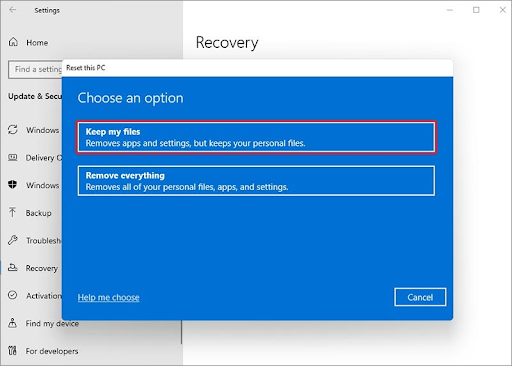
- Now, select the Keep my files option.
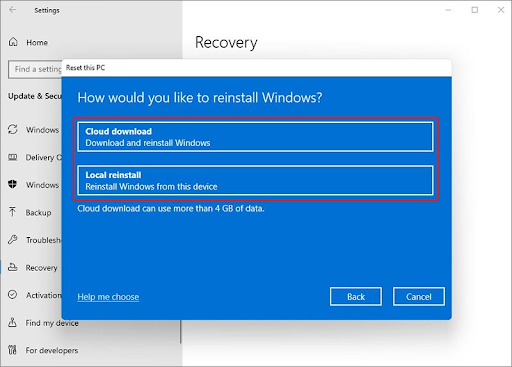
- Select one of the below backup options:
- Cloud download (downloads fresh Windows from the internet)
- Local reinstall (uses existing system files)
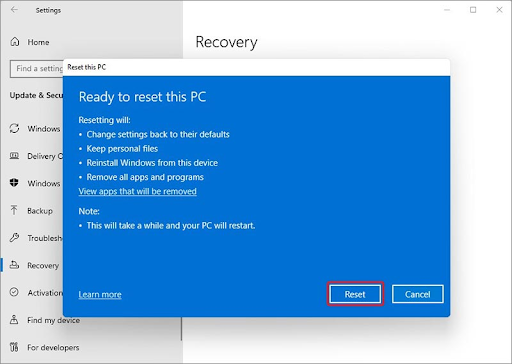
- Click Next and then review the settings and hit Reset to confirm.
Method 02: Reset Using Advanced Startup
If your Windows 11 PC is not booting properly or getting stuck during startup, this method can be very useful. It allows you to access advanced recovery options even when Windows fails to load normally. To reset your PC using this method:
- Firstly, restart your Windows PC.
- When the Windows logo appears, press and hold the power button to enter Advanced Startup Options.
- Now, tap Troubleshoot > Reset this PC and choose Keep my files.
How to Restore Data Lost After Windows 11 Reset?
Sometimes you may encounter data loss issues on your Windows PC after resetting it. Unexpected data loss can be distressing, especially if the lost data is important. In such cases, you can go through below free data recovery methods to restore your lost files without any cost:
01: Recover Data Using Cloud Backups
If you’re good at maintaining cloud backups of important files and folders, then check these backups to restore your files. Cloud backups such as Microsoft OneDrive, Google Drive, or Dropbox automatically store your important files online, making recovery simple and secure from any synced device.
Follow the below steps to restore your lost files using cloud backups:
- Firstly, you need to sign in to your cloud account using the same credentials you used before the reset.
- Once logged in, navigate to the folders where your files were previously stored.
- Next, select the files or folders you want to recover and download them back to your system.
You can either restore everything at once or choose specific items based on your needs. Ensure you have a stable internet connection, as large files may take time to download.
02: Recover Deleted Files Using Free Data Recovery Software
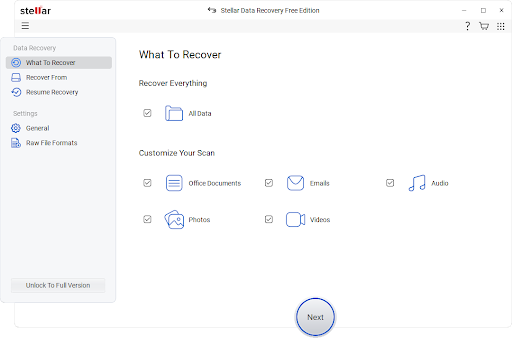
Instances may happen when you don’t have any backup of your deleted files. In such a case, you can use third-party free data recovery software such as Stellar Data Recovery Free to restore your deleted files. It is an all-in-one free data recovery software which supports the recovery of files deleted due to several reasons, including accidental deletion, formatting, system failures, etc. The software supports recovery of deleted photos, videos, documents, and other types of files from SD cards, Hard drives, and other internal and external storage media.
The Stellar Data Recovery Free software supports the recovery of deleted files up to 1 GB for free. However, to recover files of larger size, you can upgrade to premium versions. The software allows you to preview recoverable files before restoring them to your device. It supports data recovery in three simple steps, i.e., Select, Scan, and Recover.
Final Thoughts
Resetting your Windows 11 PC without losing data is a powerful and safe way to fix system issues without starting from scratch. You can use the built-in “Keep my files” option to refresh your device OS while keeping the stored files intact. However, if you encounter data loss issues on your device while resetting, you can check recovery workarounds such as previously created backups or third-party free data recovery software like Stellar Data Recovery Free.
If your PC feels slow, buggy, or unstable, don’t hesitate—a reset might be exactly what it needs to run like new again.
Frequently Asked Questions (FAQs)
Will resetting Windows 11 delete my personal files?
No, if you choose the “Keep my files” option, your personal files, like documents, photos, and videos, remain intact.
How long does it take to reset a Windows 11 PC?
Resetting your Windows PC usually takes from 20 minutes to 1 hour, depending on your system speed and selected reset option.
Is it safe to reset Windows 11 without backup?
Although files are usually safe, it’s always recommended to create a backup to avoid accidental data loss.
Can I recover files if they are lost after reset?
Yes, you can recover files using backups, cloud storage, or professional free data recovery tools like Stellar Data Recovery Free if data loss occurs.